
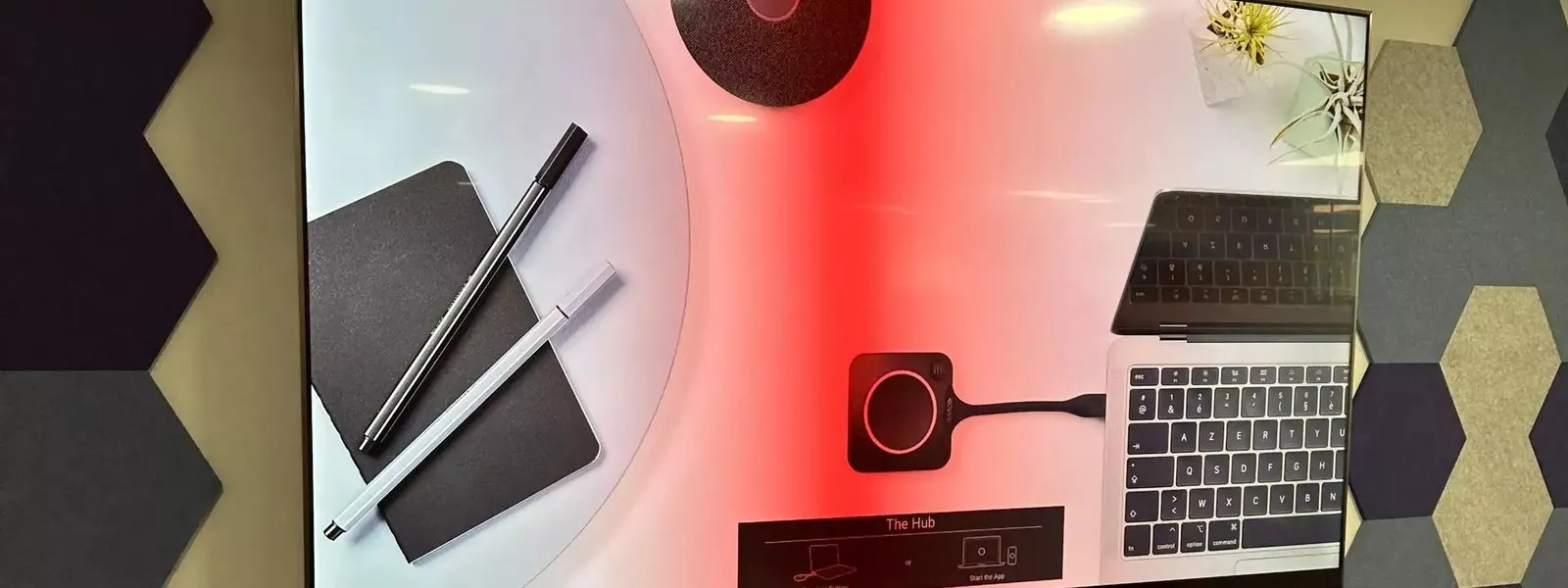
Wireless presentation in a London meeting room can be as simple as a small streaming box behind the screen or as complete as a system that lets visitors run their own video call on the room's camera and speakers. The right choice depends on who uses the room, which devices they bring and how tightly your IT team controls the network.
A meeting room that needs a cable hunt before every presentation wastes time and looks poor to clients. Wireless presentation fixes it, but the market ranges from consumer gadgets to enterprise systems, and it is easy to buy the wrong level. This guide sorts the options into tiers, then covers the security and network questions that decide which tier fits.
Three tiers of wireless presentation
| Tier | Example | Good for | Watch out for |
|---|---|---|---|
| Screen mirroring box | An Apple TV in conference room mode | Small offices where most people use Mac, iPhone or iPad | Windows and Android users need another route |
| Casting to the room system | Sharing to a Teams Room from a staff laptop | Offices standardised on Microsoft Teams | Visitors on unmanaged laptops |
| Dedicated system | A receiver with buttons, an app and built in casting | Client rooms, boardrooms, mixed devices, guests | Higher cost, so match it to rooms that need it |
The simplest option: a screen mirroring box
For a small London studio or agency where most people carry Apple devices, a streaming box at the screen can do a surprising amount. Apple's guide "Use Apple TV 4K as a conference room display" explains its conference room mode. When it is turned on, the screen shows the AirPlay connection instructions and the wireless network details, and anyone can then share their screen from a Mac, iPhone or iPad. You can add your own message, require a four digit PIN shown on the screen every time someone connects, and lock the mode with a passcode so it cannot be switched off.
The limit is the devices. People on Windows laptops or Android phones need another way to share, and the box does nothing for video calls. It is a good answer for one or two small rooms, not for a floor of meeting rooms used by clients.
Casting in rooms that run Microsoft Teams
If your London office has standardised on Teams, the room system is often the wireless presentation system. Staff join the room's meeting and share from Teams, and the room display and remote attendees see the same content. Our guide to Microsoft Teams Rooms for London offices explains how those rooms are put together, and our Teams Rooms installation in London page covers what we fit.
The gap is visitors. A client with their own laptop, on their own company's software, may not be able to share into your room's meeting easily.
Dedicated systems for client rooms and boardrooms
A dedicated wireless presentation system puts a receiver at the screen and offers several ways in: a button that plugs into the laptop, an app, or the casting built into Mac, Windows and phone operating systems. The better systems also let a visitor run their own call on the room's camera, microphones and speakers, which our post on bring your own device meeting rooms covers. We usually recommend this tier for:
- Boardrooms and client suites, where visitors present often.
- Training rooms, where many people share in turn.
- Rooms with a mix of Mac, Windows, iPad and Android.
- Offices where guests must stay off the corporate network.
Security: three questions to ask
- Does it show a code on the screen? A PIN shown on the display means only people in the room can connect. In glass walled London offices, where rooms sit side by side, that matters.
- Where do guests connect? Either a guest network that can reach the receiver, or a system that gives the guest a direct link without joining your network.
- Who keeps it updated? Receivers are network devices and need firmware updates like anything else on the network.
The network behind wireless presentation
Sharing a screen is a live video stream, so the network has to be up to it. We wire every receiver and room system, give the meeting rooms strong Wi-Fi for the laptops, and agree with your IT team how guest devices reach the screens. Our wired and wireless networks page explains our approach, and our meeting rooms page covers the rest of the room.
We also leave a cable connection at the table in every room. A wireless system that is perfect nine days out of ten still needs a fallback on the tenth.
Questions we are often asked
Is an Apple TV good enough for a meeting room?
For a small room used mainly by Apple devices, it can be, especially with the PIN turned on. For client rooms with mixed devices, a dedicated system is better.
Can visitors share without our Wi-Fi password?
Some dedicated systems allow it, which is a common reason to choose one for client facing rooms.
Will remote attendees see what we share wirelessly?
Only if the content goes into the video call. Content mirrored to the screen alone is seen only in the room.
Can two people share at once?
Some systems can show more than one source on the screen. Tell us how your meetings run and we will match the system to them.
Do we still need a cable at the table?
We always fit one as a fallback.
If you would like your London meeting rooms to start on time, we will look at how each room is used and recommend the wireless presentation tier that fits, room by room. You can also get a starting figure from our commercial quote builder or see our AV installers in London page.
Book a consultation or call our head office on 01344 937999 (London office 0208 064 0196).
- Log in to post comments