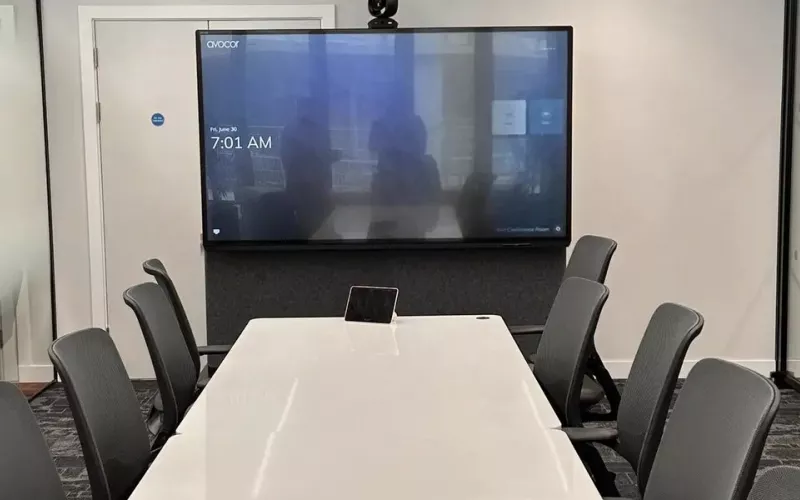
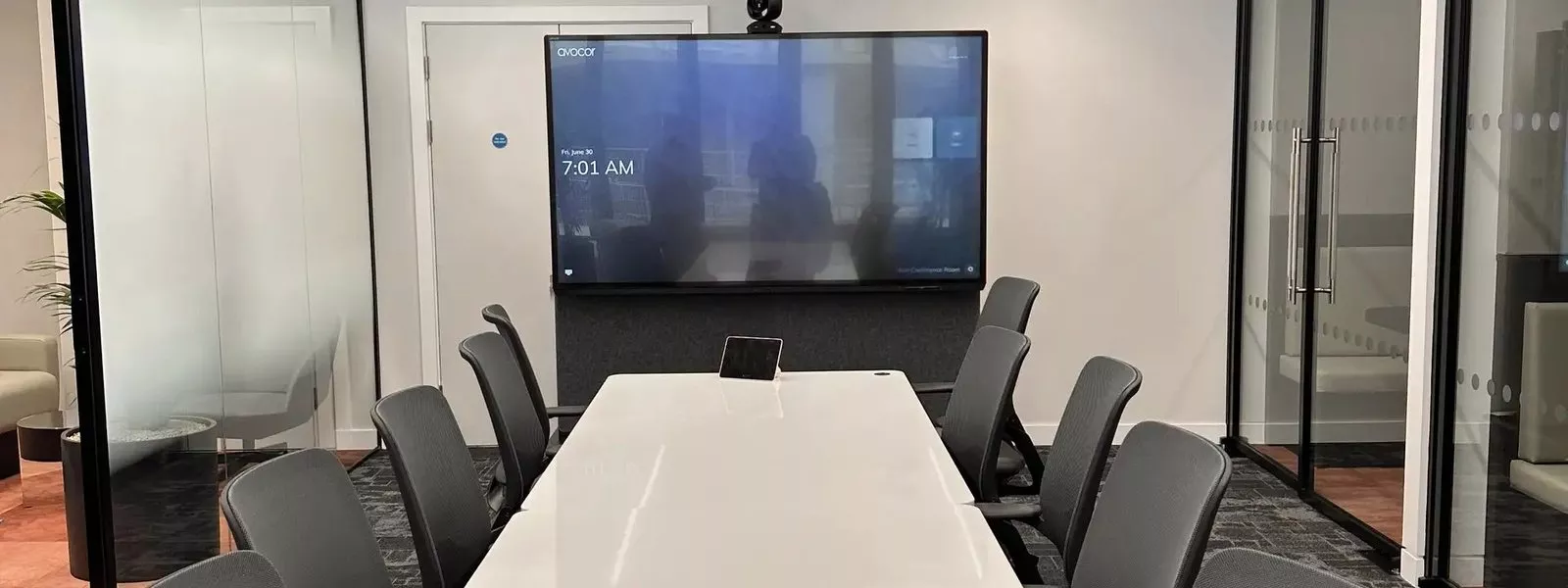
Microsoft Teams Rooms for a London office should be chosen room by room: an all in one video bar for a huddle space, a bar with extra microphones for a meeting room, and a camera, ceiling audio and two screens for a boardroom. Get the room, the network and the licence right first, and the equipment choice becomes simple.
Most London offices now run a mix of rooms: a couple of small huddle spaces, a few meeting rooms and one boardroom that has to impress. The mistake we see most often is buying the same kit for every room, which leaves the boardroom sounding thin and the huddle room overspecified. This guide sets out what each type of room needs, what to check before you order, and how the licence affects what the room can do.
What a Microsoft Teams Rooms system actually is
A Teams Room is a dedicated meeting system that lives in the room. It has its own compute, a camera, microphones and speakers, a touch controller on the table and one or two screens on the wall. Nobody has to bring a laptop or plug in a cable: you walk in, tap the meeting on the controller and the call starts.
Every room runs on a certified device from a manufacturer such as Neat, Logitech or Yealink, and every room signs in with its own room account, so it appears in Outlook as something people can book. That is what separates a Teams Room from a television with a webcam on top.
Windows or Android
Teams Rooms come in two families. Android systems are usually all in one video bars with the compute built in, which keeps a small room tidy and simple. Windows systems use a small PC behind the screen or in a cupboard, and suit larger rooms with several cameras, ceiling microphones or a separate audio processor. Both run the same Teams Rooms app, so people see the same screens in every room.
Microsoft Teams Rooms for each room type in a London office
| Room | Typical size | Camera and audio | Screens |
|---|---|---|---|
| Huddle room or pod | 2 to 4 people | All in one video bar with camera, microphones and speaker | One screen, 50 to 55 inch |
| Small meeting room | 4 to 6 people | Video bar, often with a table microphone added | One screen, 65 inch |
| Medium meeting room | 6 to 10 people | Video bar or separate camera, extra microphones along the table | One large screen or two side by side |
| Boardroom | 10 people and more | A camera that frames speakers, ceiling microphones and ceiling speakers | Two screens, or a large single screen |
| Training room | Varies | Camera at the back of the room, microphones for the presenter and the audience | A screen for the room and a confidence screen for the presenter |
Our pages on huddle rooms and meeting rooms go into more detail on layouts and furniture.
Huddle rooms
A small room needs very little. One video bar under the screen covers the camera, microphones and speaker, and a touch controller on the table starts the meeting. The main thing to get right is the screen height, so the camera sits at eye level for people sitting down.
Meeting rooms
Once the table is longer than about three metres, people at the far end start to sound distant. A table or ceiling microphone fixes that. A camera that frames whoever is speaking helps the people on the call follow the conversation.
Boardrooms
A boardroom is where the extra spend pays off. Ceiling microphones keep the table clear, ceiling speakers spread the sound evenly, and two screens let the room see the people on the call and the shared content at the same time. Larger rooms often need a separate audio processor, which is where a Windows system and careful design come in.
The licence decides what the room can do
Every Teams Room needs a room licence, and Microsoft offers two. Microsoft's Teams Rooms licensing guide says the Basic licence comes at no extra cost with a certified system and covers scheduling, joining meetings, content sharing and collaborative whiteboarding, and that an organisation can assign up to 25 Basic licences. Beyond 25 rooms, the rest need Pro.
The Pro licence adds the features that matter in bigger rooms: intelligent audio and video, Front Row and large gallery layouts and dual screen support, along with remote device management, conditional access policies and detailed device analytics. In practice, a boardroom with two screens needs Pro, and so does any office that wants its IT team to see the health of every room from one place.
Before you order: five checks for any London office
- The network. Each room should have a wired data point for the compute and the controller, and the room needs a reliable internet connection. Check with your landlord or IT provider that the meeting room ports are live and not blocked by a proxy.
- Power and containment. Screens, bars and controllers all need power in the right place. In a managed building, cable routes through raised floors and ceilings may need the building manager's approval.
- Acoustics. Glass walls and hard floors make rooms echo. A few acoustic panels often do more for call quality than a more expensive microphone.
- Room accounts. Each room needs its own account in Microsoft 365 before it can sign in. Your IT team or ours can set this up.
- Who supports it. Rooms need updates and the occasional fix. Decide who looks after them before the first meeting, not after the first failure.
Upgrading an existing room
Many London offices already have a screen and a webcam, or an older Zoom or Teams room. Often the screen and cabling can stay, and only the compute, camera or audio needs replacing. Older Android devices are a particular concern: our post on auditing Teams Rooms on Android 10 and 11 explains what to check. For a newer all in one option, see our look at the Biamp Devio UCX 1000.
How we install Microsoft Teams Rooms in London
We start with a visit to see the rooms, the furniture and the network. You then receive an online proposal with drawings, so you know exactly what goes where before any work starts. We supply and install the equipment outright, so you own it, set up the rooms in Microsoft 365, test a call from every seat and show your team how to use it. Afterwards, 1Install Care keeps the rooms supported, with most fixes done remotely.
For a quick budget before a visit, our Quote Builder prices a room in a few minutes. Our Teams Rooms installation page for London has more on how we work, and our London AV installers page covers the wider office: signage, audio and displays.
Questions we are often asked
Do we need a Teams Rooms Pro licence?
Not for every room. A simple huddle room works well on Basic. Rooms with two screens, and offices with more than 25 rooms, need Pro, and Pro is worth having when your IT team wants remote management and reports.
Can we keep our existing screens?
Often, yes. If the screen is a good size for the room and in good condition, we can add a certified video bar or compute and keep it.
Can a Teams Room join Zoom or Google Meet calls?
Many certified devices can join other platforms' meetings as a guest, though Teams meetings give the fullest experience. We check this for the devices we recommend before you buy.
How long does an installation take?
A huddle room is usually done in a day. A boardroom with ceiling audio takes longer, and is often planned around evenings or weekends so the office keeps working.
Do you work in listed or managed buildings?
Yes. We plan cable routes with the building manager and use surface containment or wireless options where walls and ceilings cannot be touched.
If your London office is planning new meeting rooms or upgrading old ones, we will survey the rooms and recommend the right Microsoft Teams Rooms set up for each one.
Book a consultation or call our head office on 01344 937999 (London office 0208 064 0196).
- Log in to post comments